

The Photoshop AI Assistant is more than an update. It revolutionizes image editing via direct text commands.
It was 3 AM. A client in Casablanca awaited an ad campaign. I was drowning in edits. This meant adjusting lighting and isolating backgrounds for 50 complex images. Exhaustion made me repeatedly botch photo edges. Each manual shadow tweak stole precious minutes I didn’t have. In peak frustration, I tried Photoshop’s web beta. I used the AI Assistant for the backlog. I simply asked it to “open shadows without destroying highlights.” I also requested it remove distracting elements. This was a “one-click” fix. It wasn’t perfect for every shot, but it was a lifesaver. Sometimes it created a new Adjustment Layer instantly. Other times, it guided me with direct tool links. Thanks to this TwiceBox approach, I finished two hours early. I saved three hours of routine work. The client was impressed by the clean delivery.
- What is the Photoshop AI Assistant?
- Automated Editing with Text Prompts
- AI Markup: Sketching Ideas into Reality
- The Photoshop AI Assistant as a Personal Designer Coach
- Beta Challenges and Avoiding Processing Errors
- Access Details and Subscription Plans
- Why Real-World Shadow Adjustments Differ from YouTube Tutorials
- Conclusion
What is the Photoshop AI Assistant?
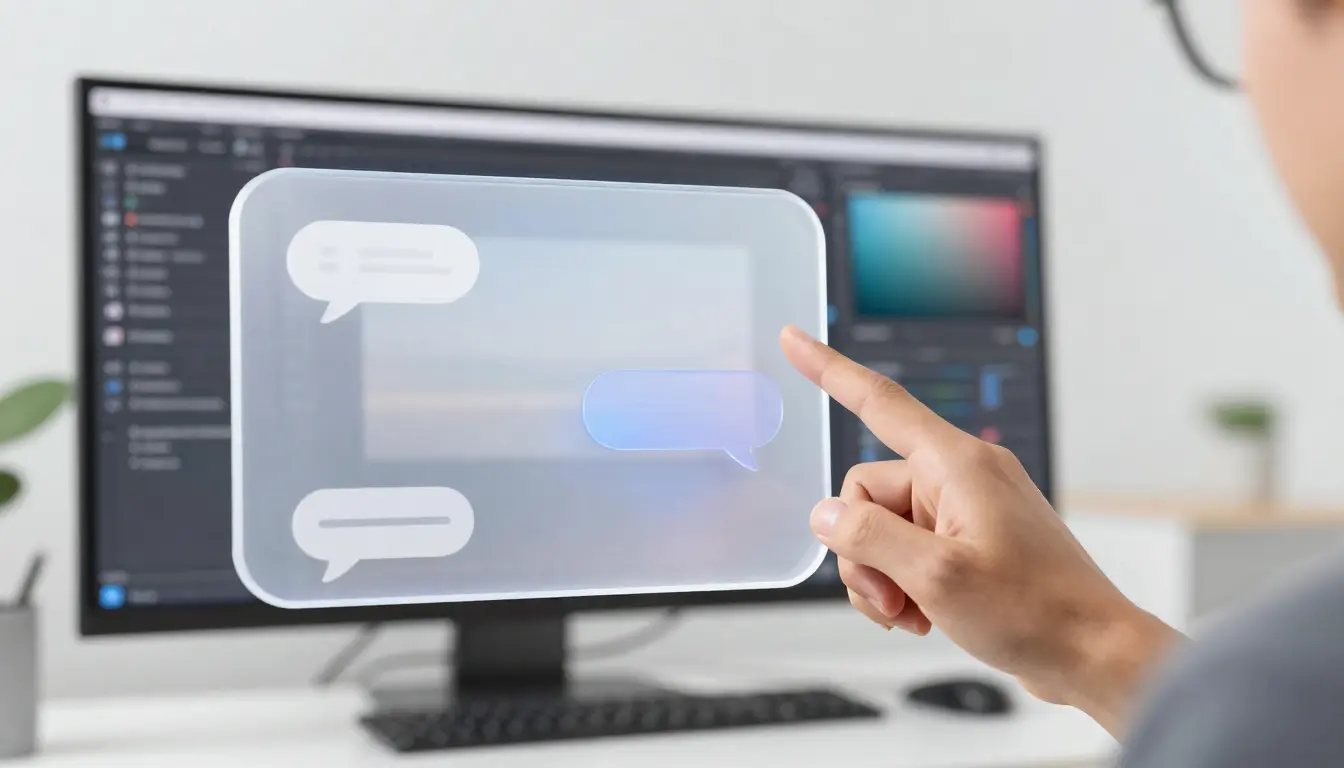
The Photoshop AI Assistant is a digital companion. It uses Adobe Firefly’s advanced models. This tool appears as an interactive chatbox. It analyzes image content instantly when opened. Designers no longer need to search lengthy menus. Simply describe your desired outcome in natural language. The assistant understands the visual context.
How the Assistant Works on Web and Mobile
This feature is in public beta. It’s available for web browsers and mobile devices. Activating the assistant scans elements, lighting, and overall image composition. It provides immediate suggestions. These are based on the visual input. It might suggest brightening the foreground. It could also propose cropping for better focus.
‘Do It For Me’ vs. ‘Show Me How’
Adobe’s new philosophy empowers users. It offers two distinct paths. The “Do it for me” option executes tasks automatically. It’s incredibly fast. The “Show me how” option acts as a coach. It explains technical steps in detail. This balance benefits busy professionals and learners.
This analytical capability enables complex edits with simple commands.
Automated Editing with Text Prompts
The Photoshop AI Assistant processes text requests. It converts them into software operations. In a past architectural project, I asked it to “enhance building contrast without affecting the sky.” The assistant immediately created a precise mask. It then applied a Curves Adjustment Layer. The result was stunning. It saved me an hour of tedious manual selection.
AI-Powered Lighting and Shadow Enhancement
The assistant understands light levels. It interprets the image’s histogram distribution. When asked to lighten shadows, it isolates dark areas. It then adjusts them programmatically. It might use Curves or Levels. This depends on the required contrast complexity. However, it can err on images with very limited dynamic range.
Automating Repetitive Tasks and Saving Time
Distraction removal is a current Assistant strength. It can identify and delete power lines or background people. This is a one-tap action. It uses Generative Fill technology. This intelligently fills empty spaces. It reduces the need for manual Clone Stamp Tool use.
Besides text prompts, a sketching feature offers more control.
AI Markup: Sketching Ideas into Reality
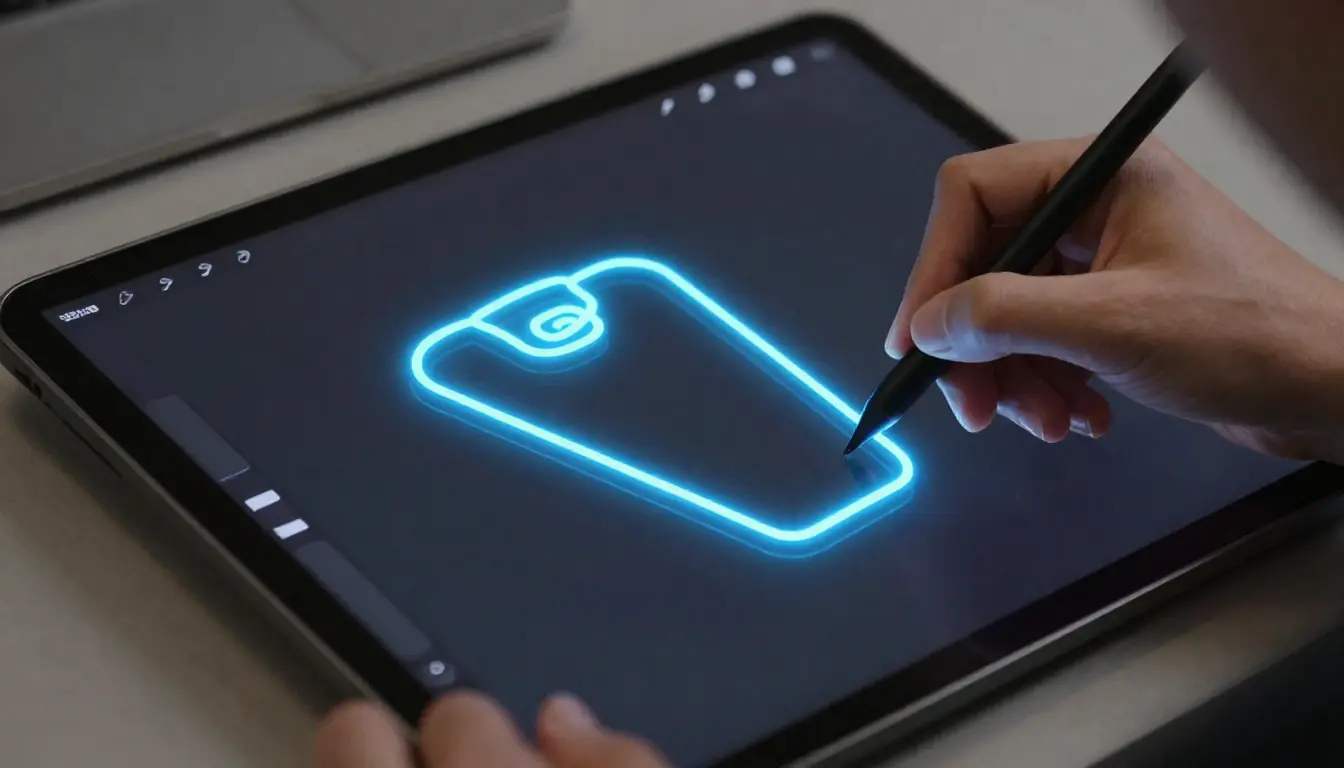
AI Markup lets designers sketch a quick guide. This directs the AI. Instead of text alone, it defines element placement and size. This solves the problem of unwanted generated elements. The feature gives more composition control. It refines AI-generated images.
Precise Placement of New Elements with Sketches
Sketch a circle on a table. Type “coffee cup.” The assistant understands the required size. It won’t generate a giant cup. The sketch acts as a reference frame. It guides the sophisticated Firefly models. This eases integrating new elements in tight spaces.
Integrating Generated Elements with Ambient Lighting
The assistant analyzes existing light direction and shadows. When adding an element via AI Markup, it mimics those conditions. It creates cast shadows. These align with the scene’s natural light source. The added element appears integrated. It looks like part of the original image.
This execution accuracy makes the Assistant an invaluable teaching tool.
The Photoshop AI Assistant as a Personal Designer Coach
The Assistant bridges skill gaps. We often know the desired result. We just don’t know the right tool. The Assistant solves this. It provides direct links to Photoshop tools. This makes editing an interactive lesson. It happens live, during your workflow.
Tracking Edit History and Understanding Steps
Monitor the History panel. See how the Assistant executed the last request. It breaks down complex operations. These become simple, understandable steps. If it added a mask and adjustment layer, view its settings. This helps build professional, organized PSD files.
Direct Tool Access via Interactive Links
When explaining “red-eye” correction, the Assistant offers a link. This opens the specific tool. No need to search menus. No need to memorize shortcuts. These interactive links shorten learning time. They make the program less daunting for new users. It’s integrated learning in your workflow.
However, technical hurdles remain.
Beta Challenges and Avoiding Processing Errors
The Photoshop AI Assistant is still developing. This means occasional failures. In one test, I asked it to enhance colors. The image was black and white. The Assistant complied, which was illogical. AI can “hallucinate.” It might not grasp content nature.
Automatic Selection Issues in Complex Images
The Assistant struggles with subtle color contrast. It might misidentify edges. In one photo, it included sky patches. This resulted in splotchy color blemishes. Always review AI-generated masks. Refine them manually with a soft brush.
Handling Black and White Photos and High Contrast
Harsh lighting challenges automated editing algorithms. When asked to lighten shadows, it might overexpose highlights. This can “burn out” bright areas. Details in windows or skies are lost. Monitor adjustment layers closely. Ensure brightness values stay within reason.
Understanding these limitations separates amateurs from aware professionals.
Access Details and Subscription Plans
Adobe launched these features for global leadership. New tools are available to Creative Cloud subscribers. They are accessible via web and mobile apps. Reports indicate a focus on making AI a core productivity tool. Read more about the Photoshop AI Assistant launch in official sources.
Credits System and Unlimited Usage Period
Subscribers enjoy unlimited image generations. This lasts until April 9th. After this date, the Generative Credits system resumes. Generation speed and quality depend on available credits. This system ensures fair use of cloud resources. These technologies require significant processing power.
Free Tier Options for Web Users
Adobe offers limited access to non-subscribers. Free web users get 20 image generations. This is an initial trial. It allows everyone to test the Assistant. They can do this before committing to a subscription. This is a smart strategy. It attracts new AI-dependent digital creators.
These plans show Photoshop’s future relies on smart automation.
Why Real-World Shadow Adjustments Differ from YouTube Tutorials
Typically, you spend 15 minutes fixing AI mistakes. This happens when you ask to lighten shadows. It destroys bright areas. You end up masking manually. This drains mental energy on repetitive tasks. I found combining the AI Assistant with Blend If solves this.
First, ask the Assistant to add a Brightness/Contrast layer. This lifts shadows. Ignore the highlight distortion. Second, double-click the new layer. This opens the Layer Style window. Third, go to the Blend If section. Drag the left half of the white slider. Move it towards 150. Hold Alt while dragging. This splits the slider. It ensures a smooth transition.
Bright highlights regain detail instantly. Shadows remain illuminated. Previously, manual masking took hours. Now, adjusting this slider takes 30 seconds. This is a massive productivity gain. We use this approach at Hcouch Digital. It ensures high quality, fast turnaround. Do not use this for pure white product backgrounds. It creates gray edges. In that case, ask the Assistant to select the object. Then, invert the mask manually.
Conclusion
The Photoshop AI Assistant starts a new era. Language becomes the primary design tool. Despite beta stumbles, its automation and teaching power is impressive. Start today with simple projects. Practice crafting effective text prompts.
What manual tool do you struggle with? Wish the AI Assistant would automate it?
Discover more from أشكوش ديجيتال
Subscribe to get the latest posts sent to your email.